Configuring Script Studio
Personally, I’m very dissatisfied with the built-in IDE in REDkit—specifically because of the theme. But since it’s the only IDE with WS debugging, I have to use it.
Fortunately, Script Studio is flexible in some areas, and in this guide, I’ll show you how to customize it to your liking.
I’ll be setting up a dark theme based on the Monokai Pro style (my favorite theme). You can use your favorite theme instead.
Configuring Syntax Highlighting
To configure syntax highlighting, go to Tools → Text editor.
Enable (some may be enabled by default):
- Highlight Brackets
- Indentation Guides
- Highlight matching words
Additional Settings:
Code Outlining:
Enables a panel for collapsing and expanding functions. This can be convenient but looks bad since custom colors can’t be applied to it, and it doesn’t look good in dark themes.
Show Whitespace:
Shows indents, spaces, or tabs. You can enable it if it’s convenient.
Show Line Endings:
Displays line endings (CR, LF, CRLF). This is useful in specific situations.
In the Hover Information submenu, enable Tooltips. This setting activates tooltips when hovering over function, class, or variable names.
Configuring the Theme
To change the theme, go to Tools → Text editor → Colours. A table with columns will open:
- Style — the element for which the color is changed.
- Foreground — the text color.
- Background — the background color of the characters.
- Font — font selection.
Style descriptions:
- Default — default text and background color. Used for indentation characters, line endings, and other small details.
- Comment — the color of comments.
- Number — the color of numbers (int, float).
- String — the color of strings in double quotes.
- Character — the color of strings in single quotes.
- Identifier — function, variable, and parameter names.
- Operator — mathematical operators, brackets, colons, semicolons.
- Word — language keywords: class, function, var, enum, if, else, etc.
- Word 2 — modifiers: private, public, final, import, etc.
- GlobalClass — data types: int, float, string, void, bool, etc.
- Bracket Highlighting — highlighting the current and closing bracket.
- Line Numbers — the color of the line with line numbers.
- Opcodes — highlighting low-level commands. (Enable Display Opcodes in Tools → Advanced for this).
In the Hover Info menu, configure the colors for tooltips similarly to the main styles. In the Caret section, change the caret color.
My Configuration
Font Selection
First, replace the default font. The quality of the font directly affects code readability.
Courier New, while nostalgic for the IBM era, is completely outdated. I prefer JetBrains Mono — a font I’m used to. You can choose any other font you like.
For the Word, Word 2, and GlobalClass styles, I use medium italic, as it stands out better than bold.
Color Configuration
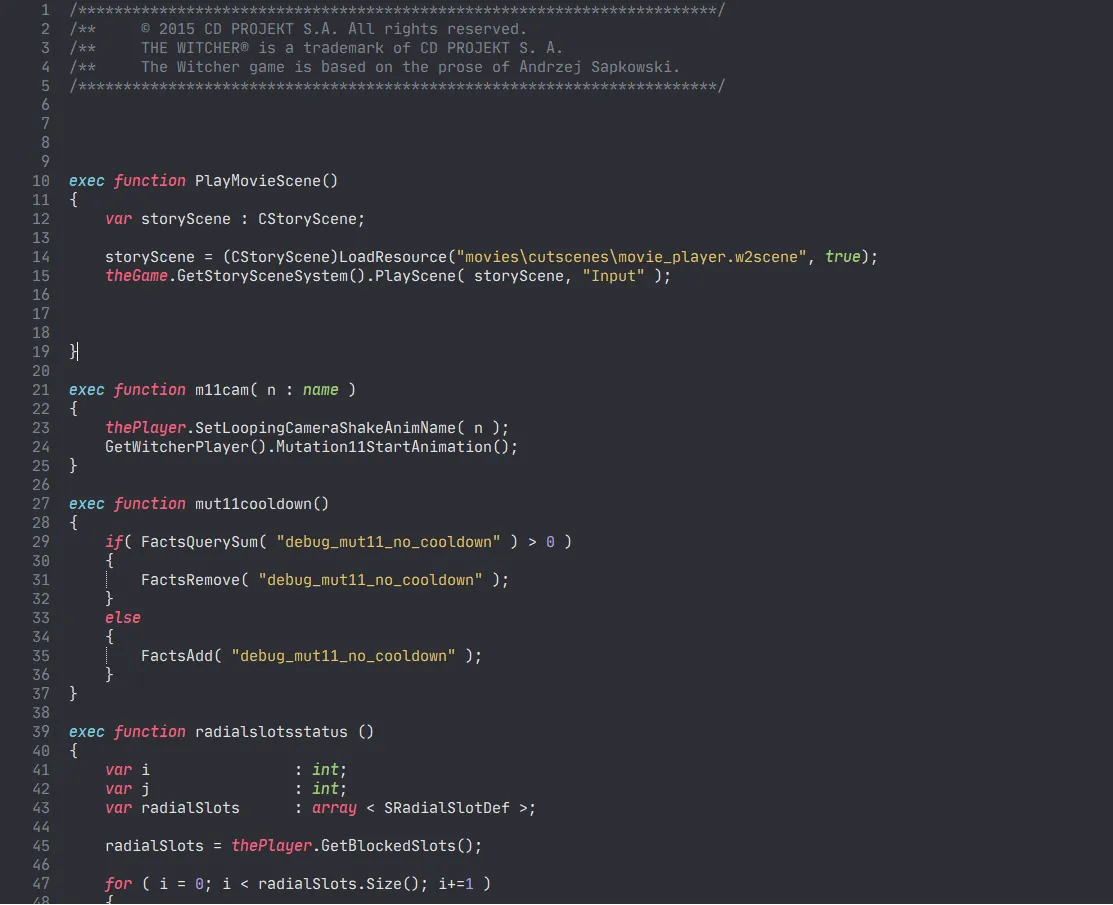
My color settings. If you like them, feel free to use them (there's a screenshot at the end).
Background:
- For all elements except Bracket Highlighting: (44, 46, 52)
- For Bracket Highlighting: (64, 62, 65)
Foreground:
- Identifier, Operator, Bracket Highlighting: (226, 226, 227)
- Default, Сomment, Line Numbers, Opcodes: (127, 132, 144)
- Number: (179, 157, 243)
- String, Character: (231, 198, 100)
- Word: (252, 93, 124)
- Word 2: (118, 204, 224)
- GlobalClass: (158, 208, 114)
These same settings are applied in the Hover Info section.
In caret → Сolour: (250, 250, 250)
Result:
After all the changes, working with code has become much more comfortable, even though they only apply to the code window and not the entire IDE.
Final result:
Author: leviofanh
Documentation is maintained by the REDkit RU community members.
The translation into English is done using the LLM.
```